We’ve completely rebuilt the back-end pages for managing your TourVista account and virtual tours. Here’s a tour of the new design and features that you’re sure to love.
The Home Page
A slick new design awaits when you login to your TourVista account. The home page acts as a control panel for your entire account, showing your most Recent Tours and a nifty widget for quickly creating a New Tour.
Here’s a detailed video tutorial that for the Craigslist newbies that goes through each step of adding your post to the appropriate real estate section on Craigslist:
Learn more about our new Craigslist templates here and see why it’s important to include more than just plain text on your listings if you want them to stand out amongst the masses on Craigslist.
We’ve received a huge response to our new Craigslist templates that went live last week. So big in fact we’ve decided to allow ANYONE to use them — no TourVista account required.
Just go to tourvista.com/craigslist and enter your property information as demonstrated in this video:
Ya baby! Hope you enjoy!!
Not sure what the big deal is? Recently Craigslist hammered down on their real estate listing guidelines, essentially reducing all listings to plain text. No externally-hosted images. No fancy HTML formatting. More info at our blog posts here and here.
Nov 20th Update: More customizable and no TourVista account required! Visit tourvista.com/craigslist
In response to our blog post yesterday about Craigslist hammering down on images and styling , we are pleased to release the initial version of our New & Improved Craigslist Template for Real Estate!
While your competition is sprinkling in bold text and bulleted lists to their boring plain text ads, your listings will shine with TourVista’s new Craigslist design.
Here’s a video of the new templates – and if you haven’t already, setup a free account on TourVista and start using our new Craiglist template today!
Nov 14th Update: We’ve released a new & improved version of our Craigslist template! Details here
WOW! is all I have to say about this.
Craigslist is now removing all externally-hosted images and most other formatting from your real estate posts.
That is, your beautiful posts created using various Craigslist templates like TourVista’s are now stripped naked and in most cases looking very ugly.
No images. No fancy styling. No well-designed layout.
Just plain text and some minor formatting like bold and italics. Excuse me while I barf.
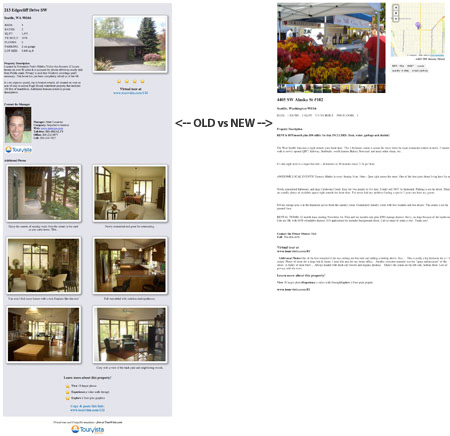
TourVista’s original Craigslist template (left) shows images and other styling. Craigslist converts it all to boring, plain text (right).
Is this just an effort to blast us all back to 1995? I don’t think so. Craigslist has always gone the route of “less is more” with their design and overall user experience. Instead, it feels more like a way to manage the look of all posts for consistency in an effort to level the playing field for everyone.
No need to freak out…
While this does have most real estate marketers in a state of shock, it is actually good news. By removing all images and fancy styling and forcing all posts to be plain text, ANYTHING that we can do to make your text better than just plain text will help it stand out.
And that’s what we are working on right now — an updated Craigslist template that takes your property info from TourVista and generates “better than plain text” copy/paste code to help it POP on Craigslist.
Stay tuned… and let us know if you have any ideas!
This is a really cool update that allows you to further customize your virtual tour with interactive floor plans by choosing the color for your arrows.
It’s super easy to customize the arrow colors:
Step 1
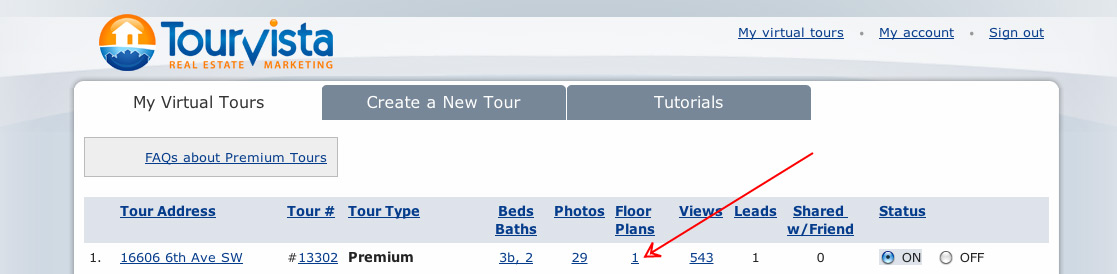
Login to your account at TourVista.com and click the Floor Plan link for the tour you’d like to edit.
Step 2
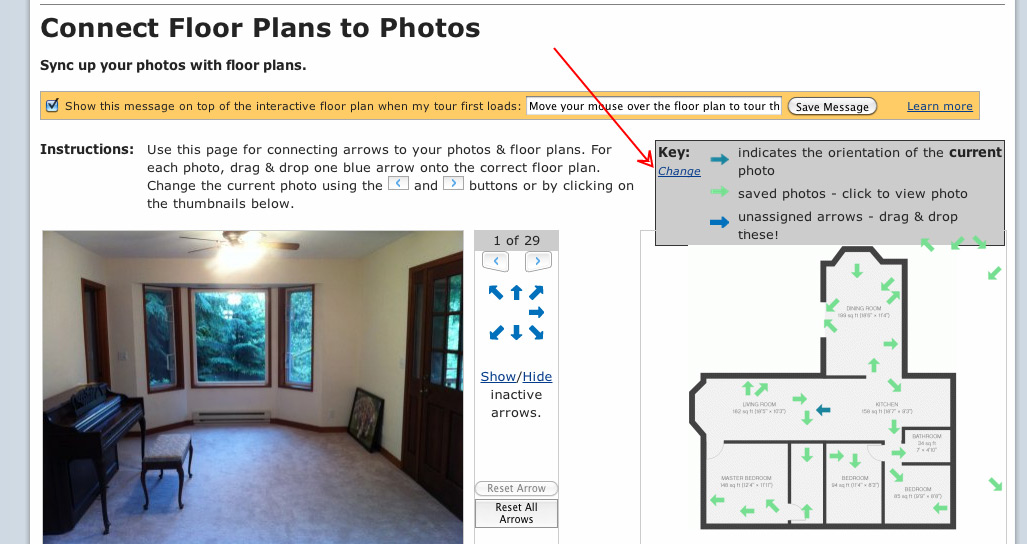
Then click the link to “Connect your photos to these floor plans”
Step 3
Click the “Change” link to select different color arrows for both the “on” and “off” states as shown on your interactive floor plans.
Step 4
Save and view your tour! Aren’t you snazzy? But of course you are 😉
Here’s a video tutorial that walks you through the above steps:
Hopefully you’ve figured out that you can simply click on any photo in your virtual tour to launch the full-size photo slideshow, like this post explains.
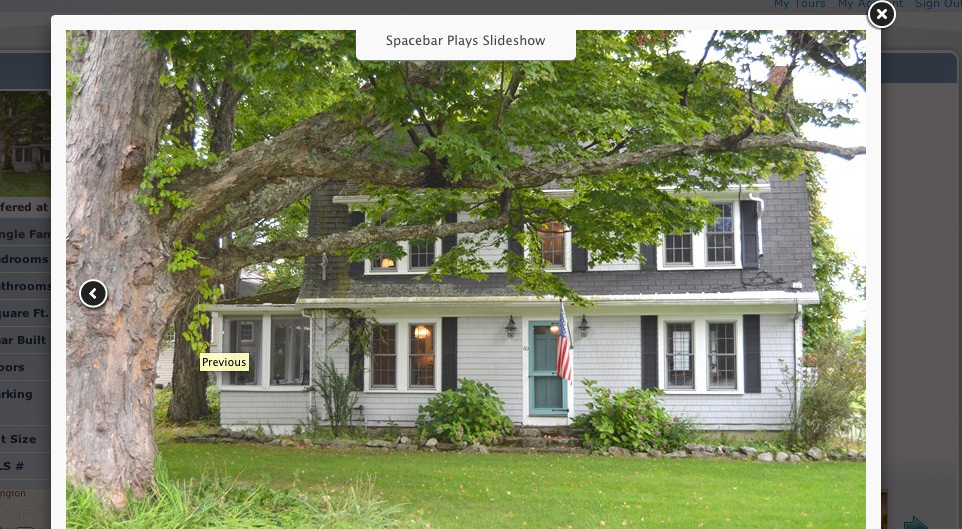
But, did you know that you can press the SPACEBAR on your keyboard to play the slideshow automatically? How cool is that? We’ve even added a little notification at the top of the slideshow so your viewers know that they have this option, too.
You guessed it, pressing the spacebar again pauses the slideshow.
Click the spacebar on your keyboard to play/pause the slideshow.
TourVista was one of the first companies on the web to allow users to setup interactive floor plans for marketing their real estate. And while our interface for viewing the interactive floor plan was nice and clean… it was a bit small.
Most of our users figured out that their floor plans should be drawn such that they would fit nicely on the tour page, including cropping them tight so there was no unnecessary white space around the edge, resulting in the largest floor plan possible. Even still, if your property had a big, complex floor plan, it became very small and hard to read.
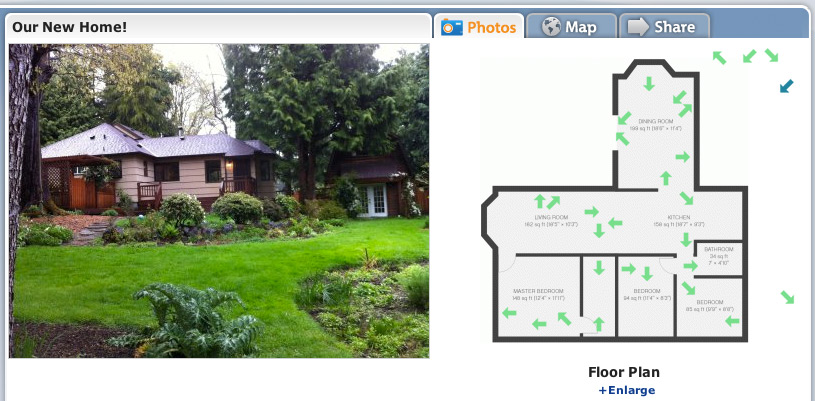
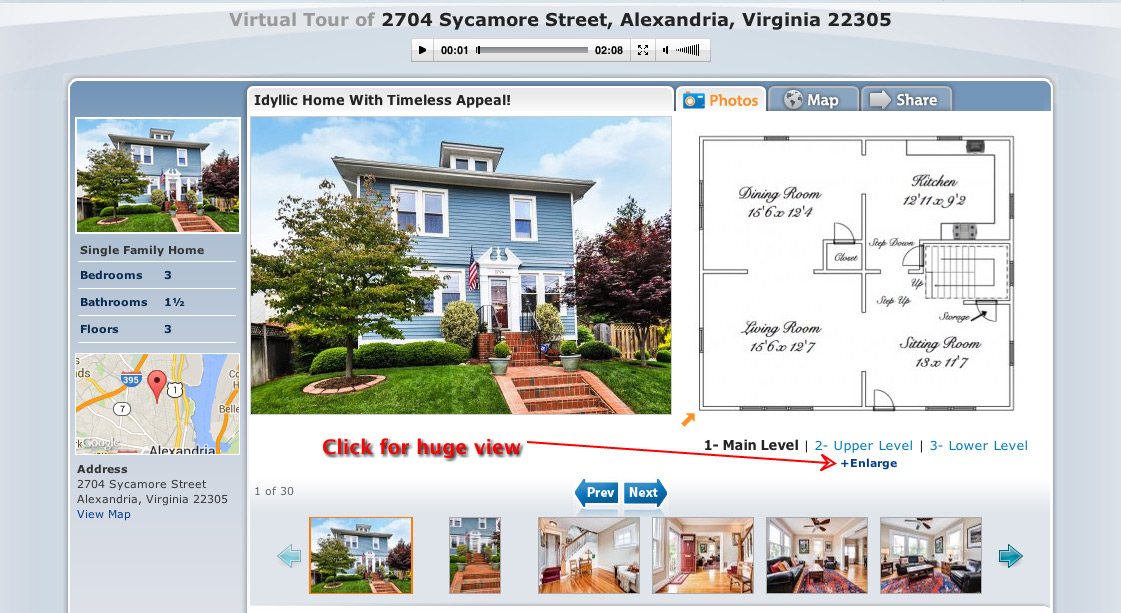
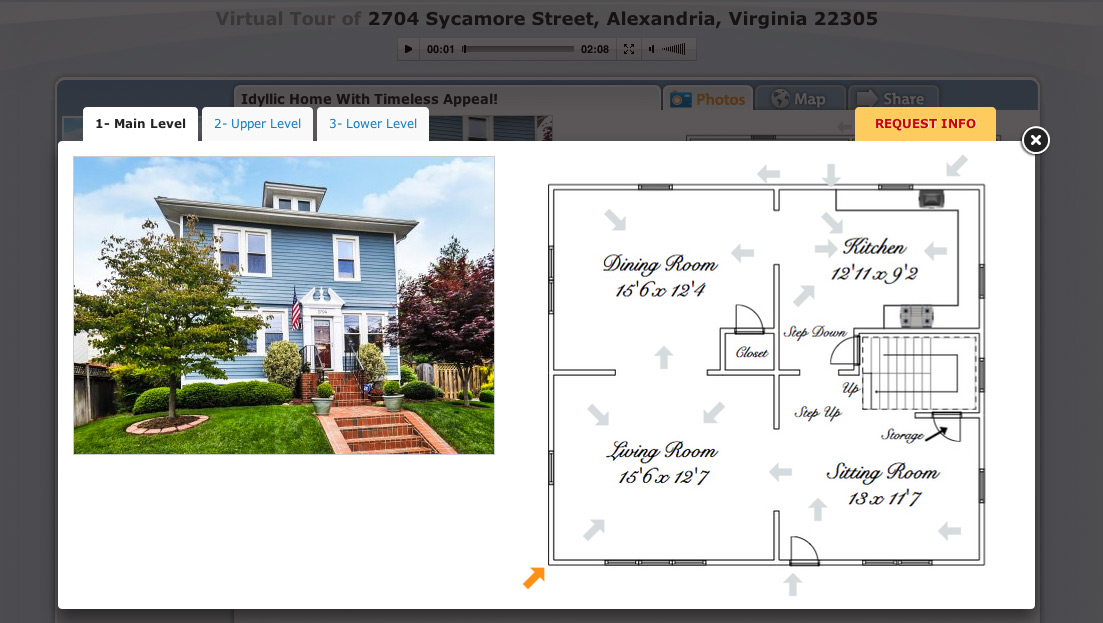
Well, it is my pleasure to announce that we’ve updated our tour page with a link “+Enlarge” that shows your interactive floor plan in a MUCH larger view! Yeehaw! Check it out:
Click the +Enlarge link
Full size view of interactive floor plans.
If that’s the good news, the better news is that all of your existing virtual tours with interactive floor plans have been updated automatically to show the larger view. Sweet!
Here’s a quick screencast demonstrating the large interactive floor plans:
We’ve heard from a few users that they would prefer a more obvious way to view full size versions of the photos and floor plans on their virtual tours.
Ask and you shall receive!
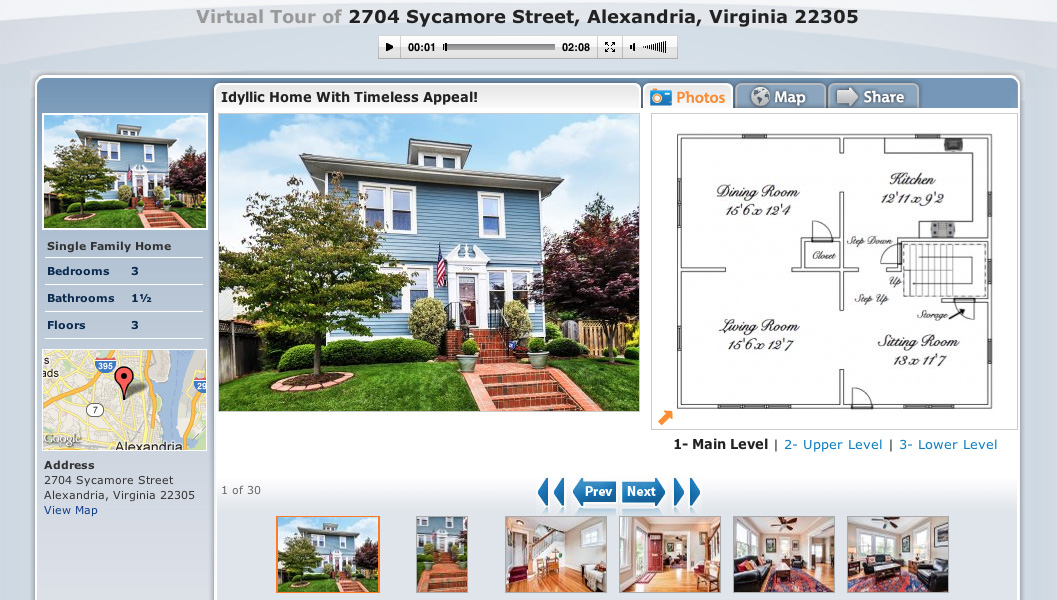
The Photos tab for an interactive floor plan.
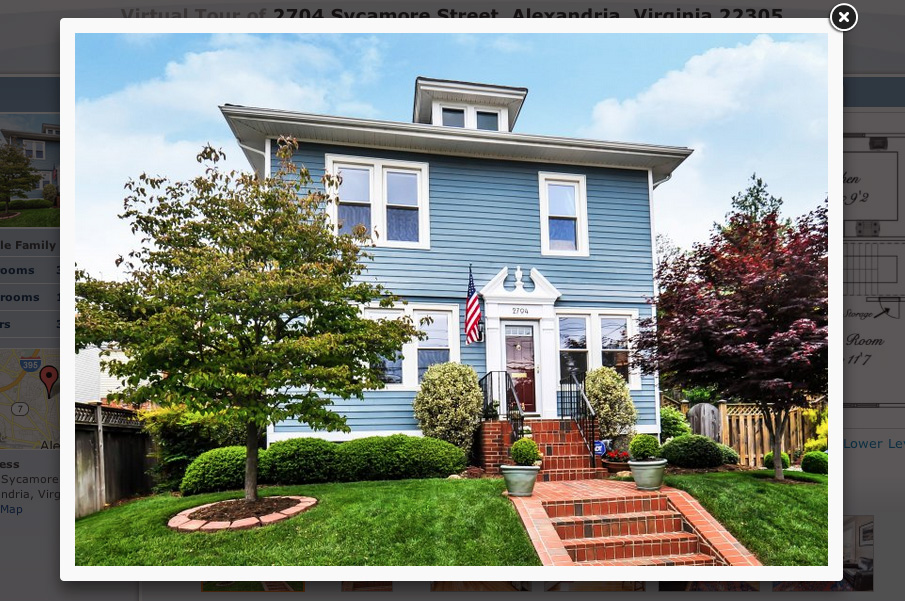
The lightbox for viewing each photo at full size.
The two screenshots above show (on the left) the Photos tab for an interactive floor plan and (on the right) the lightbox for viewing each photo at full size.
Tip: once the lightbox is showing, you can use the left/right arrow keys on your keyboard to quickly scroll through the photos.
Just visit one of your virtual tours and you’ll see that the lightbox has already been applied*.
* This update applies to Premium tours only, not free tours.